

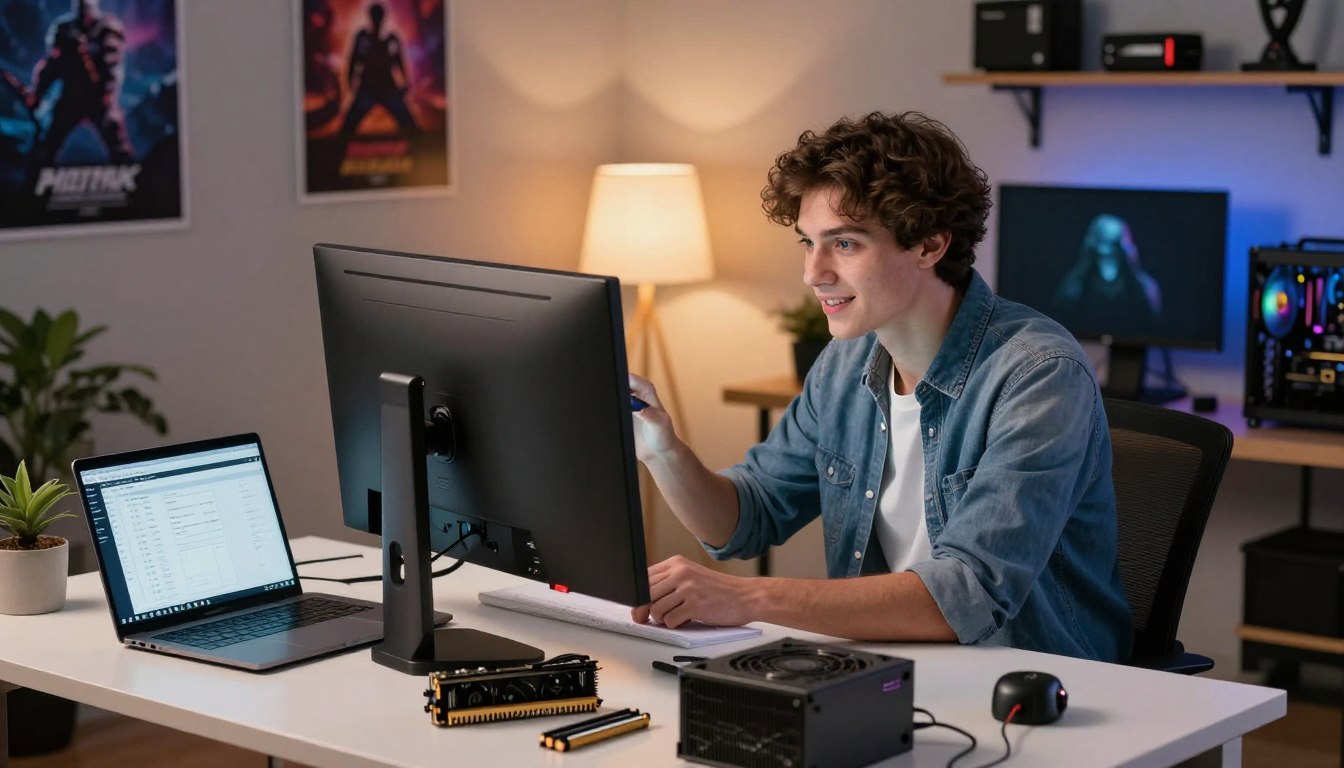
A custom gaming setup begins with a handful of parts that must fit and work together. First-time builders can make the process manageable by choosing components around their games, screen resolution, and budget.
This guide helps you identify the parts, plan a balanced build, and prepare for assembly. You do not need expert-level skills; careful preparation matters more than complicated tools or prior experience.
Compatibility deserves attention before you buy. A processor, motherboard, memory, and case can each be good choices alone yet fail to work together. Set a budget and decide which games and screen resolution matter most before choosing parts.
Key Takeaways
- Choose parts to match your games, resolution, and budget.
- Check that the processor and motherboard use a matching socket.
- Confirm that the case has room for the graphics card and cooler.
- Plan for enough memory and storage for the games you play.
- Read the motherboard manual during assembly and first boot.
What Items Do You Need to Build a Gaming PC?
At minimum, plan on nine core items, from the CPU and graphics card to the operating system. Each part has a job, and the parts must work as a complete system.
A complete build needs nine core items, including cooling and an operating system.
The required components are a CPU, GPU, motherboard, RAM, storage, power supply, cooling, case, and operating system. A DIMM is the long motherboard slot that holds a desktop RAM module. The motherboard connects the parts, while the CPU and graphics card handle processing and visuals.
| Part | Role | Required or optional |
|---|---|---|
| CPU and GPU | Processing and graphics | Required |
| Motherboard and RAM | Connects parts and provides working memory | Required |
| Storage and power supply | Stores files and supplies electricity | Required |
| Cooling and case | Controls temperature and houses components | Required |
Use this checklist to confirm your core parts:
- CPU and graphics card
- Motherboard and RAM
- Storage and power supply
- Cooling and case
- Operating system
Case fans beyond the basic cooling plan, RGB lighting, and a Wi-Fi card are optional. They can improve airflow, appearance, or wireless access, but they are not essential in every build.
A monitor, keyboard, and mouse are needed to use the finished system, but they are not internal build parts. Check that the parts list includes cooling as well as the obvious processor, graphics, and storage parts.
How Should You Match Your Build to Your Budget?
Budget tiers give a useful starting point: in 2026, entry-level builds are estimated at $700-$1,000. Set the target first, then divide spending according to the games and tasks you expect to run.
The GPU usually takes the largest share of a gaming budget, followed by storage and cooling as important cost variables. For a tight budget, prioritize the graphics card over a premium CPU. A 2026 budget build can pair a 6-core CPU with an entry-level 80+ Bronze or Gold power supply.
| Build tier | Estimated cost in 2026 | Typical use |
|---|---|---|
| Entry-level | $700-$1,000 | 1080p gaming and light workloads |
| Mid-range | $1,300-$1,900 | 1440p gaming, streaming, and creative work |
| High-end | $2,000-$3,500+ | 4K gaming and maximum ray tracing |
Those ranges help you set priorities, not promise an exact bill. The GPU’s price can shift a build most; storage capacity and the cooling setup can also change the total. Leave room for the operating system and any peripherals you still need.
A build-your-own gaming PC kit is a preselected group of parts, not necessarily a complete computer. Check exactly what the bundle includes. Some kits include a case, PSU, cooling, and memory, but leave out other core components.
A $500 budget is below the typical entry-level estimate, so a new custom build at that price may require compromises, used parts, or reused hardware. A kit can still help you start a parts list, but confirm that missing items fit your budget. Keep the GPU, storage, and cooling in the budget before spending extra on cosmetic features.
How Do You Choose a CPU and Graphics Card?
For most gaming budgets, put more emphasis on the graphics card than on premium CPU features. The GPU does the visual work, while the CPU handles game logic and general processing.
The graphics card is usually the main gaming-performance purchase. A GeForce RTX card is one example of a graphics-card product family, but it is not the only option. Choose by the games and resolution you plan to use, rather than by a brand name alone.
Match the CPU to the workload
For a 2026 gaming PC, consider a CPU with high clock speeds, 6-16 cores, and a newer architecture designed for gaming and streaming. A 1080p player seeking high frame rates may benefit from a strong CPU as well as a capable GPU.
Streaming and creative work can add pressure to the processor. A CPU with more cores can help when you run a game alongside encoding, editing, or other demanding programs. Spending on features you will not use does not automatically improve play.
Choose a GPU for your games and resolution
At 1440p and 4K, games are more likely to be GPU-bound than CPU-bound. That means the graphics card often sets the limit on how smoothly detailed scenes render. High-resolution play usually gives you a better reason to direct more of the budget toward the GPU.
For 1080p high-frame-rate play, balance both parts because the CPU can affect how quickly the system prepares frames. For 1440p, 4K, streaming, or creative work, consider the whole workload before choosing. Match the GPU to the resolution you will actually play at, rather than buying for a higher resolution you do not use.
How Do You Choose a Compatible Motherboard?
The CPU socket is the first motherboard specification to match, because the processor has to fit it. Start with that match, then compare the board’s connections and size.
A motherboard socket must match the CPU exactly. Intel LGA 1700 and AMD AM5 are examples, not the only socket options. The chipset affects how data moves and which USB options and PCIe lanes the board supports.
Motherboard format determines which case sizes can hold the board. ATX is the larger common format, while Micro-ATX and Mini-ITX use smaller layouts. Many new boards support PCIe 5.0 for newer GPUs and NVMe SSDs, but the board’s exact slots and lane options still matter.
| Format | Relative board size | Typical case fit |
|---|---|---|
| ATX | Large | Mid-tower or full-tower |
| Micro-ATX | Medium | Mid-tower or Micro-ATX case |
| Mini-ITX | Small | Compact or Mini-ITX case |
Match the CPU socket and chipset
Check the processor’s socket before comparing other features. A board with the right socket still needs a chipset that suits your preferred connections and expansion needs. This is where checking the actual model specifications can prevent a poor fit.
Pick a form factor and useful connections
Count the RAM slots, M.2 slots, and expansion space for the GPU. Check whether the board has the rear USB and audio connections you need, along with case-header connectors for front ports.
Think about future additions without paying for slots you will never use. Choose a board with enough RAM and storage slots for the upgrades you genuinely expect to make.
How Much RAM Do You Need, and What Speed Is Best?
For a modern gaming build in 2026, 32GB is the practical target for most players. Sixteen gigabytes can work, but 32GB gives games and background tasks more room.
Choose 32GB for gaming, or 64GB if editing, streaming, and substantial multitasking are regular parts of your workload. DDR5 is the standard for modern desktop gaming PCs by 2026. Kits start at 4800MHz, with faster options reaching 6000MHz or higher.

Speed and timings both affect performance. The timings describe delays in memory operations, so a higher speed number alone does not guarantee the better kit. A DDR5-6000 CL30 kit can outperform DDR5-6400 CL36 in real-world tasks.
| Platform or situation | Practical speed and timings | What to expect |
|---|---|---|
| AM5 gaming | DDR5-6000 CL30-CL32 | Common practical recommendation |
| Intel 14th- and 15th-generation gaming | DDR5-6400 CL32 | Practical upper limit |
| Speeds above 6400 MT/s | Higher speed, often looser timings | Diminishing returns for most users |
Choose capacity for gaming or multitasking
Sixteen gigabytes remains a workable minimum, especially for a tightly budgeted system. Thirty-two gigabytes is ideal for gaming in 2026. Sixty-four gigabytes better suits editing, streaming, and heavier multitasking.
Balance DDR5 speed and timings
For most AMD AM5 gaming builds, DDR5-6000 with CL30-CL32 is a practical recommendation. For Intel 14th- and 15th-generation gaming builds, DDR5-6400 CL32 is a practical upper limit. For 90% of users, going above 6400 MT/s offers diminishing returns unless benchmark scores are the goal.
DDR5-5600 is a sensible budget-build recommendation. The reported gaming difference between DDR5-5600 and DDR5-6000 is +3-8% in CPU-bound games, while DDR5-6000 to DDR5-7200 is +1-3% in most titles. GPU-bound 1440p and 4K games show even less impact from memory speed, so those gains are not universal. Buy a matched kit that the motherboard supports, not a high speed number by itself.
What Storage Should You Put in a Gaming PC?
A 1TB NVMe SSD is a practical starting point for the operating system and games. It gives you useful room for frequently played titles without relying on a slower secondary drive.
A 500GB drive can feel limiting if you keep a large game library installed. An NVMe M.2 SSD makes a simple primary drive, while a SATA SSD or HDD can add extra capacity for games and media.
Storage and RAM do different jobs. Storage keeps files and installed games when the computer is off; RAM holds information the system is actively using. A larger SSD does not replace memory, and more RAM does not give you more room for game files.
A 2026 budget build can start with a 500GB or 1TB NVMe SSD. Choose 1TB if you want a practical balance for the operating system and games. Add a second 2TB SATA SSD or HDD when you need more room for a broad library, recordings, or media.
You can add another drive later, but the motherboard’s available connections set your choices. Check the motherboard’s M.2 slot count before deciding whether to add storage later.
How Do You Choose a Safe, Reliable Power Supply?
Choose the PSU around the actual CPU and GPU, not a generic wattage target. The graphics card matters most to the power requirement, though the whole parts list affects the final choice.
A typical gaming build may use a 500W-850W power supply, depending on the CPU and GPU. Check the graphics-card manufacturer’s recommended PSU capacity, then choose a unit that meets that requirement with reasonable headroom.
An 80+ Bronze or Gold unit suits the entry-level budget-build strategy in 2026. The rating describes efficiency, not the full quality of a PSU, so also look for reliable construction and the correct protections and connectors for your system.
Modular cables let you connect only the cables your parts need, which can make the case easier to manage. A non-modular PSU can still work well, but its unused cables need somewhere to go.
Do not buy far more wattage than your parts need just to create a large safety margin. Too little capacity can cause problems, while excessive capacity can take money from components that affect gaming more directly. Check that the PSU has the connectors required by the graphics card and motherboard.
What Cooling Does Your Build Need?
An air cooler is the straightforward default for many builds, while a liquid cooler suits builders who need its cooling or prefer its look. Both can cool a gaming PC when the model fits the processor and case.
Air cooling is usually simpler and more cost-conscious; liquid cooling adds radiator-fit checks and installation steps. Your case’s airflow and available space also affect temperatures and how easy the build is to work on.
Compare air cooling and liquid cooling
An air cooler uses a heatsink and fan to move heat away from the CPU. It is reliable, affordable, and easier to install. A liquid cooler can offer quieter operation, stronger thermal performance, and a more premium appearance, but the radiator must fit.
Check cooler height against the case’s limit. For a liquid cooler, confirm radiator support and clearance around nearby components. Thermal paste may come pre-applied; if not, follow the cooler’s instructions for applying it.
Plan airflow with case fans
Case fans move cool air in and warm air out. A simple arrangement with intake and exhaust fans can work better than filling every fan mount without a plan. Place fans to create a clear path through the case.
Check that the motherboard has the headers needed for the fans or pump. A fan’s direction matters, so look for the frame arrows or blade orientation before mounting it. Confirm the cooler and radiator fit the case before ordering either one.
How Do You Pick a Case That Fits?
Start with the space where the computer will sit, then check that the case can hold every selected part. Physical clearance matters as much as the case’s appearance.
Confirm motherboard support and clearance for the GPU, CPU cooler, PSU, drives, and any radiator. A case that fits the board can still be too short for a graphics card or too narrow for a tall cooler.
A high-airflow case is a good choice for a 2026 gaming PC. Check the number and positions of fan mounts, mesh or other open vent areas, and the space available for cable management. Internal room makes installation less cramped and can help keep temperatures in check.
Review the front-panel connections, too. If you want a front USB-C port, the motherboard must have a matching case-header connector. The case’s front buttons, audio jack, and USB ports should connect to the right motherboard headers.
A compact case saves desk space, but it can make installation and cooling more demanding. Limited room can complicate cable routing and reduce the options for larger coolers or radiators. Leave room around the case’s vents so its airflow is not blocked.
What Tools Do You Need to Build a PC?
A Phillips-head screwdriver and a clear workspace cover most basic PC builds. You do not need a large kit of specialized hardware to get started.
A clean, well-lit, flat surface and time to work carefully matter more than specialty tools. A magnetic screwdriver can help with small screws, but a standard Phillips-head screwdriver is the main tool for a typical build.

Gather the basic tools
Keep these useful items within reach:
- Phillips-head screwdriver, preferably magnetic
- Small container or tray for loose screws
- Cable ties or reusable Velcro straps
- Anti-static wrist strap or a regular grounding method
- Motherboard manual with connector diagrams
An anti-static wrist strap is optional if you ground yourself regularly. Keep loose screws in a tray rather than on the work surface, where they can roll under a component or disappear into the case.
Prepare a safe, organized workspace
Choose a flat table with enough room to lay out the motherboard and parts. Good lighting helps you see small labels and connectors without straining. Avoid building on a carpeted floor when a clear tabletop is available.
Take your time opening boxes and keep manuals close by. The motherboard manual is especially useful when you reach small case-header connectors. Keep the motherboard manual nearby because its connector diagrams prevent avoidable guesswork.
How Do You Prepare the Motherboard Before Mounting It?
Do as much work as possible on the motherboard before lowering it into the case. The open work surface makes small parts easier to reach and reduces awkward handling.
Align the CPU and seat it gently; never force it into the socket. Install the CPU, RAM, M.2 SSD, and cooler according to the motherboard and component manuals.
A step-by-step guide with pictures is most useful when the images show close-up details. Look for a clear view of the CPU socket marker, the RAM notch, the M.2 screw, and the cooler mount. Those details help you compare what you see with the manual, but pictures do not replace the board’s instructions.
Install the CPU, RAM, and M.2 drive
Follow these steps while the board is supported on its box:
- Place the motherboard on its box and locate the CPU socket marker.
- Align the CPU with the marker, lower it into place, and close the retention mechanism without force.
- Install the M.2 SSD in a compatible slot, then secure it with the small screw.
- Fit two RAM modules in the manual’s recommended slots for dual-channel operation.
Match the notch in each RAM module to the slot before pressing down. The M.2 drive also has a single correct alignment, so do not twist it into place.
Attach the CPU cooler correctly
Check whether thermal paste is pre-applied to the cooler. If it is not, apply a pea-sized amount to the CPU, unless the cooler’s instructions specify another method. Lower the cooler evenly and tighten it as directed.
Connect the cooler’s fan or pump cable to the correct motherboard header. Check that the CPU cooler is firmly attached and its fan or pump cable is connected.
How Do You Install the Motherboard, GPU, and Cables?
The motherboard must rest on correctly placed standoffs, not directly against the case tray. Those small supports matter because they prevent the board from touching metal where it should not.
Every power and data connector should line up and latch; never force a cable or component into place. Work through the case manual and motherboard diagrams when a connector’s position is unclear.
Mount the board and connect main power
Use this order to keep the build organized:
- Fit the separate I/O shield if the motherboard does not have one attached.
- Confirm the case standoffs match the motherboard holes, then secure the board.
- Install and connect the PSU, including the 24-pin ATX and commonly 8-pin CPU power connections.
- Seat the GPU in the PCIe x16 slot and connect any required PSU power cables.
The 24-pin ATX connector powers the motherboard, while the CPU power cable connects near the processor. Push each plug straight in until its latch catches. If it does not line up, check the cable orientation instead of pressing harder.
Install the graphics card, drives, and front panel
Install any SATA drive in its case mount and connect both its power and data cables. The GPU may need one or more PSU cables, depending on the card. Make sure those plugs are fully seated.
Attach the case’s front-panel connectors, USB cables, audio cable, and fan cables to the labeled motherboard headers. Case-header connectors can be small, so match the manual’s pin diagram and the markings on each plug.
Before closing the case, confirm the GPU is latched and the front-panel power-switch connector is on the correct pins.
What Happens at First Power-On?
Connect the monitor to the graphics card and check in BIOS that the installed hardware is recognized. Start with a hardware check before installing the operating system.
BIOS should show the CPU, RAM, and storage devices you installed. If the system reaches BIOS, you can prepare the software setup and then confirm stable operation.
Check the first boot and BIOS
Use a USB flash drive of 8GB or larger to hold an operating-system installer. Follow the operating system’s instructions to create the installer, then choose the USB drive as the boot device.
Windows 11 is a common operating-system choice for gaming. During installation, select the intended drive and follow the on-screen prompts. Once the desktop loads, confirm that the computer recognizes its storage and network connection.
Install the operating system and drivers
Install motherboard drivers and the correct NVIDIA or AMD graphics drivers after the operating system. Run system updates, then enable the RAM’s rated profile only after you have confirmed a stable boot. Keep the motherboard manual handy if BIOS names differ from the memory kit’s label.
Monitor temperatures during early use, especially while running a game or other demanding task. A steady first boot is useful, but checking temperatures helps you catch a cooling issue before long sessions. Install the latest appropriate graphics driver before judging the system’s game performance.
How Hard Is It to Build a PC With No Experience?
Building a PC with no experience is manageable if you follow the manuals and give yourself several uninterrupted hours. Patience matters more than speed, especially when connectors are small or a component needs careful alignment.
A beginner typically needs 3-6 hours, including setup and troubleshooting. Intermediate builders often take 1.5-3 hours, while professionals typically finish in 45-90 minutes.
Set aside enough time for a first build
Case difficulty, cable-management standards, cooling type, storage, and RGB equipment can all change the time needed. A simple air-cooled build with few drives can move faster than a compact system with a radiator and lighting controllers.
Modern cases, modular PSUs, and component designs make building more beginner-friendly. Still, set aside time without rushing. A small pause to check a manual is better than forcing a part or guessing at a connector.
Avoid common first-build mistakes
These are common trouble spots to check slowly:
- Missing or misplaced motherboard standoffs
- CPU-cooler installation and thermal-paste application
- Incorrect front-panel wiring
- RAM or GPU that is not fully seated
- Initial BIOS setup and hardware recognition
Small connectors can take patience, but they do not require expert hands. Handle parts by their edges and use the instructions for each component. If the first boot fails, recheck power connections and whether the RAM and GPU are fully seated before removing parts.
How Do You Check Compatibility Before Buying?
Before ordering, cross-check every part against the motherboard and case specifications. Do not rely on names alone, because a parts list can look compatible while still missing a needed fit or connector.
Check the CPU socket, memory and storage support, physical clearances, PSU connectors, and case-header connections. A front USB-C port needs a matching motherboard header, and an M.2 NVMe drive needs a compatible M.2 slot.
Use this compact checklist before you buy:
- Match the CPU to the motherboard socket and supported processor list.
- Confirm motherboard support for the chosen memory and storage devices.
- Check case clearance for the GPU, CPU cooler, PSU, and any radiator.
- Confirm PSU capacity and the required power connectors for every part.
- Match front-panel connectors to the motherboard headers.
- Check the QVL and BIOS updates for high-speed DDR5.
The motherboard’s QVL compatibility list shows memory kits tested for that board. High DDR5 speeds can increase instability and boot problems, so check the QVL and BIOS support when choosing a fast kit. A BIOS update may affect support for a processor or memory profile.
Look beyond the product names and compare measurements, slot types, and connector counts. A GPU can fit the motherboard but still be too long for the case. Resolve any uncertain fit or BIOS compatibility before opening the component boxes.
Conclusion
A good gaming PC starts with a clear performance goal and parts that fit together. Spending more does not automatically give you a better experience if the parts do not suit your games and screen resolution.
Careful compatibility checks make the build smoother and help prevent costly surprises. Write down your target resolution and budget, then check every selected part against the motherboard and case specifications.
FAQ
Is 32 GB RAM overkill for gaming?
No, 32GB is a sensible gaming capacity for many modern builds. In 2026, 32GB is the recommended target, while 16GB can still work as a lower-cost starting point. The extra memory gives games and background programs more room to run together. If you also edit video, stream, or multitask heavily, 64GB may be more useful.
Can a $500 PC run Fortnite?
Yes, it may be possible with used parts, reused hardware, or compromises, but $500 is below the typical entry-level custom-build range. The result depends on the condition and mix of parts you can find. A new build at that price may require limiting performance or reusing a case, storage drive, or other hardware you already own.
How much RAM do I need?
Sixteen gigabytes is a workable minimum, 32GB suits gaming, and 64GB can help with editing, streaming, and multitasking. Your choice depends on what you run at the same time. For a gaming-focused PC, 32GB is a practical target; heavier creative workloads can benefit from more memory.
Is 1TB RAM overkill?
Yes, 1TB of RAM is far beyond the needs of a gaming PC. Gaming recommendations are measured in tens of gigabytes, not hundreds or thousands. A terabyte of memory belongs to specialized systems with specific high-capacity workloads. For games, put that budget toward the graphics card, storage, or other parts instead.
Is 64 GB of RAM overkill?
Usually, 64GB is more than a gaming-only build needs, but it can help with demanding editing, streaming, and multitasking. If you mainly play games, 32GB is the more practical target for a modern build. Consider 64GB when your regular work uses large projects or several demanding programs at once.
Is 1TB RAM possible?
Yes, 1TB of RAM is possible in specialized high-capacity systems, but it is not a normal gaming-PC requirement. The motherboard and CPU determine the memory limit and supported modules. Standard gaming boards are designed for far less. Check platform specifications when a professional workload genuinely needs that much memory.
Is 128GB RAM overkill for gaming?
Yes, 128GB is usually far more than gaming alone requires. A 32GB kit is a practical gaming target, and 64GB can suit substantial editing or multitasking. Consider 128GB only when a specific demanding workload needs it. More capacity does not automatically make games run faster once they have enough memory.
 Sally Miles